
How Do You Recover Customer Contacts From QuickBooks Desktop?

If you have run your business on QuickBooks Desktop for ten or twenty years, your best customer list is probably sitting inside it. Every invoice you ever sent has a name, an address and a date attached. Nobody has looked at that list in years, because getting it out looks like a project.
It is a project, but a small one if you do it in the right order. This is the order we use.
Why invoice-linked contacts are the ones to recover
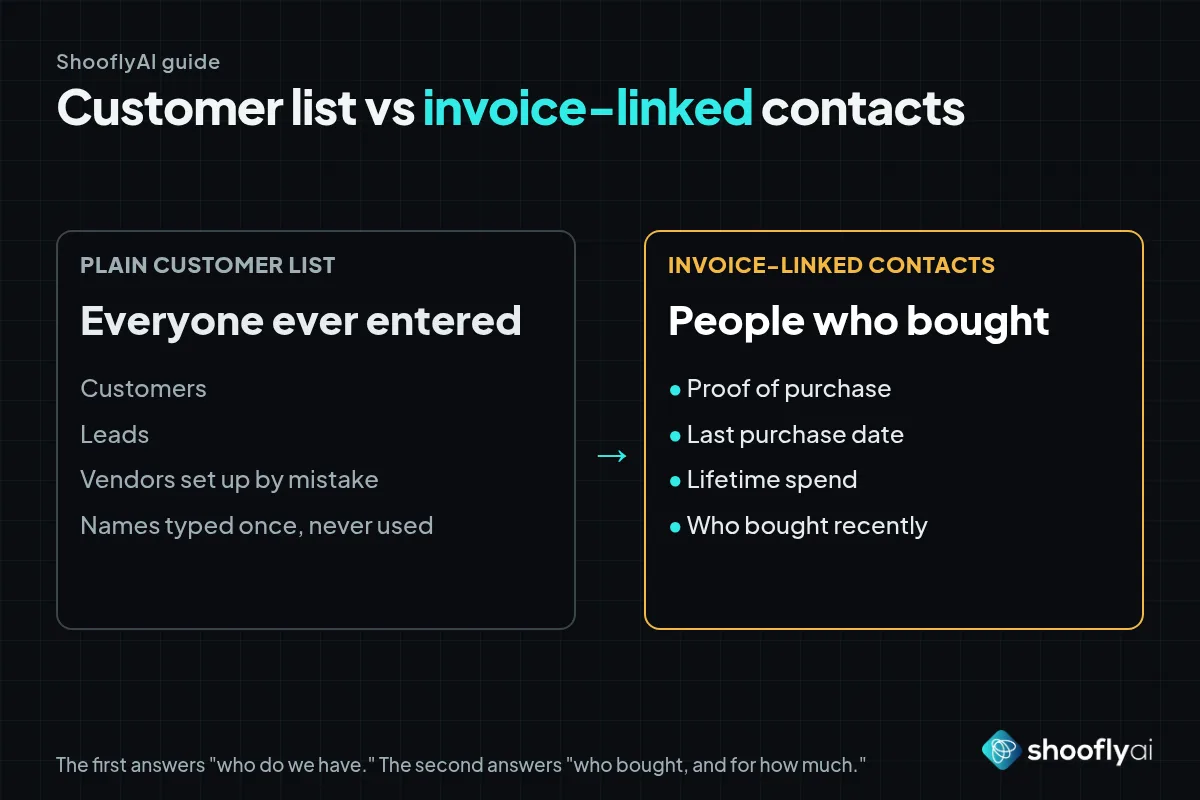
A contact list from QuickBooks usually includes everyone who was ever entered: customers, leads, vendors who got set up as customers by mistake, and names typed once and never used. A contact with an invoice is different. It proves the person bought. It carries a date, which tells you when they last did. And it carries an amount, which tells you how much they were worth.
That is why the target is the invoice-linked contact history, not just the customer list. The first answers “who do we have.” The second answers “who bought from us, how often and for how much.”
The eight steps
Menu names vary by QuickBooks version, so treat the paths below as a guide.
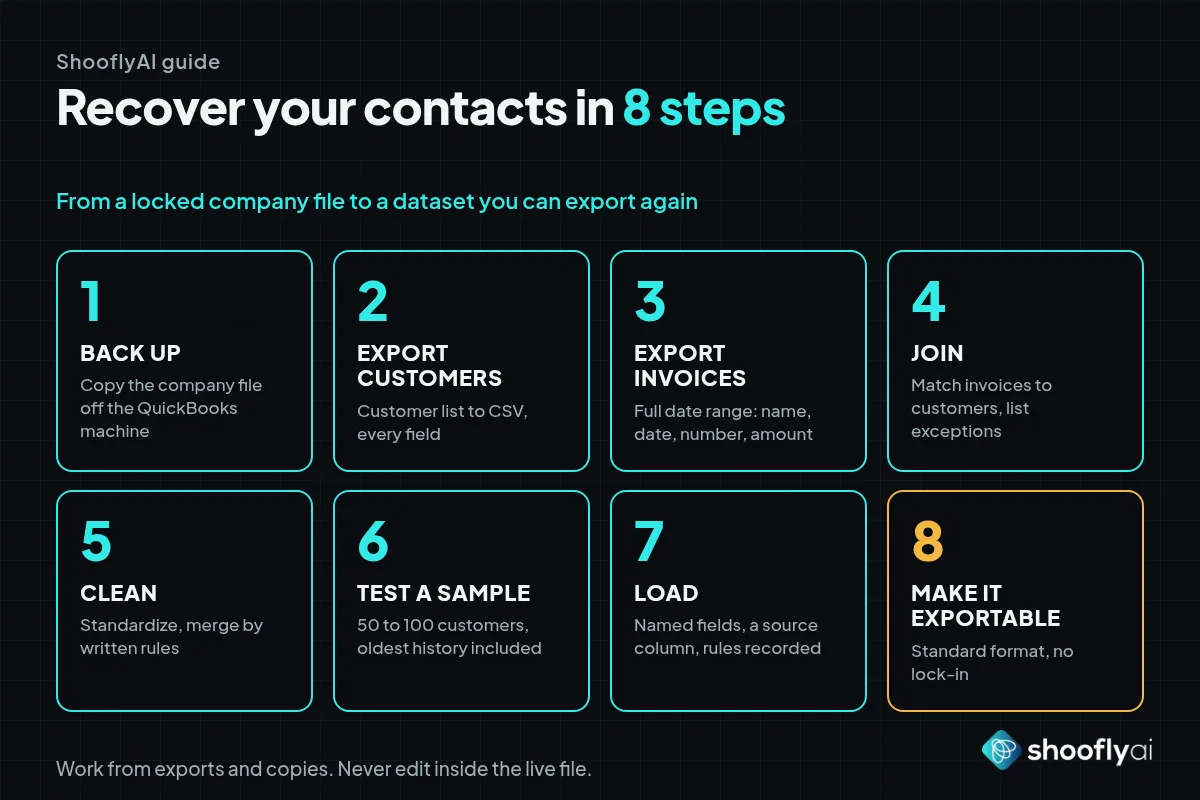
1. Back up the company file. Make a backup copy before you touch anything and store it outside the machine that runs QuickBooks. Everything from here on works from exports and copies, never from edits inside the live file.
2. Export the customer list. From the Customer Center, export the customer list to Excel or CSV with every field you can include: name, company, billing address, phone, email and any custom fields you use.
3. Export the invoice detail. Run a sales or transaction report by customer covering the full date range, and export it the same way. You need customer name, invoice date, invoice number and amount at a minimum.
4. Join the two on customer name. Match each invoice to its customer record. Expect exceptions: names that changed, customers with a job or sub-customer suffix, and invoices tied to a customer that was later merged or deleted. List the exceptions rather than dropping them.
5. Clean and deduplicate. Standardize phone numbers and addresses, flag records with no email, and merge duplicates such as “Smith Plumbing” and “Smith Plumbing, Inc.” Write down your duplicate rules before you apply them, so the same rule runs the same way every time.
6. Test a sample. Pull 50 to 100 customers, including some from the oldest part of your history, and have someone who knows them check each one. If a sample fails, fix the export or the join before going wider.
7. Load the full history. Put the cleaned records into a dataset with named fields, a source column that says where each record came from, and the duplicate rules recorded alongside it.
8. Make it exportable. Confirm you can pull the whole dataset back out in a standard format. If you cannot leave it, you have only moved the problem.
What it looked like in practice
A long-time QuickBooks Desktop user needed 19 years of contact history out of the system. The result was about 20,000 records in a governed, exportable dataset, roughly 3 weeks from the first feasibility test. The feasibility test is step six in miniature: prove on a small slice that the data comes out whole before committing to the rest. See the full case study.
What to prepare before you start
Four things make the work faster. First, someone with admin access to the company file, because some exports are restricted to that role. Second, a decision on which fields you care about, so nobody argues about it halfway through. Third, a person who knows the customers well enough to judge the sample in step six. Fourth, a place to put the result: a spreadsheet is fine for a few hundred records, but past a few thousand you want a real database with the duplicate rules attached.
Also decide what “customer” means for you. Some firms count anyone invoiced in the last seven years. Others count anyone ever invoiced. The rule changes the record count a lot, so write it down.
Where this goes wrong
Trusting the first export. Reports default to a date range, and list views can hide inactive customers, so set both on purpose. Check the record count against what you expect.
Joining on name alone. Names collide and change. Where an account number or email exists, use it as a second key.
Skipping the sample. The sample is the cheapest step and it catches the most problems.
Cleaning inside the live file. Fixing records in the company file feels tidy and is hard to undo. Clean the copy.
No exit path. A dataset that only works in one tool repeats the original problem. Our post on AI without vendor lock-in covers why.
What you can do with it afterward
Once the history is clean, ordinary questions get answers. Which customers have not bought in 24 months and used to buy every quarter? Who are the top 50 by lifetime spend? Which accounts have no email on file? That is the base for reactivation outreach, a CRM import or an AI assistant that can look up a customer’s history. For the wider accounting picture, see AI for accounting firms and our implementation roadmap. For keeping the dataset healthy once it exists, see who maintains custom AI.
If you are not sure how far back your history goes or how clean it is, that is the first question to answer. A one-day test on a slice of it will tell you.
Frequently asked questions
Can you get customer contacts out of QuickBooks Desktop?
Yes. The customer list and transaction reports export to Excel or CSV, and the company file can be backed up first. The harder part is the cleanup afterward: duplicates, missing emails and customers entered under several spellings. Plan for that work rather than the export.
Why link contacts to invoices?
An invoice proves a customer bought something, and it carries a date and an amount. Joining contacts to invoices lets you rank people by last purchase and total spend, and it separates real customers from leads and one-off names that were typed in years ago.
How long does a QuickBooks Desktop data recovery take?
It depends on how much history there is and how messy it is. One long-time user recovered 19 years of history, about 20,000 records, in roughly 3 weeks from the first feasibility test. A small company with a few years of clean data can be much faster.
Why test a small sample before loading everything?
A sample of 50 to 100 customers, checked by someone who knows them, shows whether the export is complete and the join is correct. Finding a missing field in a sample costs an hour. Finding it after loading 20,000 records costs a rerun.
Should I back up the QuickBooks company file first?
Always. Create a backup copy of the company file before any export, cleanup or migration work, and keep it somewhere you control. Work from exports, never from edits inside the live file.
What should the recovered data end up in?
A governed dataset with named fields, rules for what counts as a duplicate, and a clean export path. It should be something you can move again without a project. That keeps the data from becoming stuck in the next tool the way it was in this one.